Coming soonFree

Glint Reader

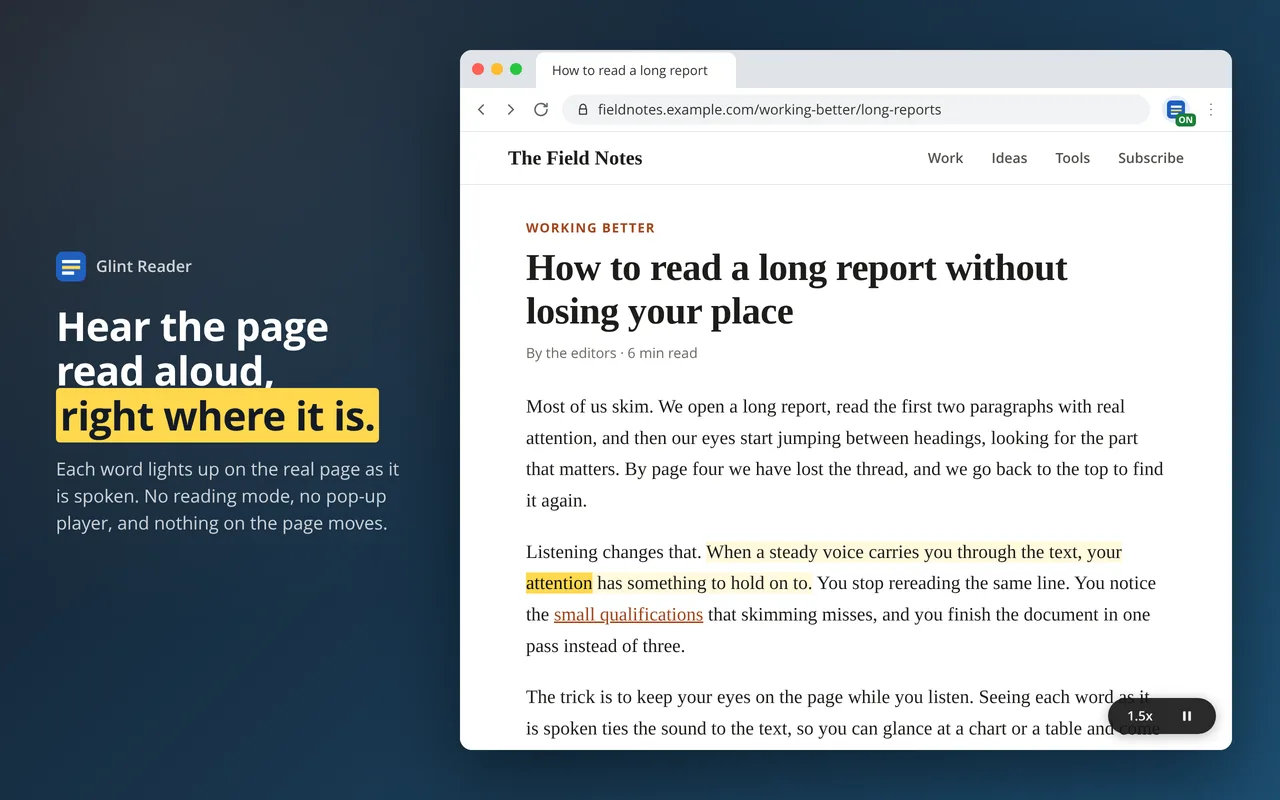
Reads any web page aloud, word by word. Each word lights up on the real page as it's spoken, with no reading mode, no pop-up player, and nothing on the page moving.

Chrome extensionAnyone who reads on the web

Coming soon to the Chrome Web Store

See how it works

Works in Chrome on Mac, Windows, Linux, and ChromeOS. No account. Nothing collected.

Beside the words “Hear the page read aloud, right where it is,” a news article in Chrome with one sentence highlighted in pale yellow, the word being spoken, attention, in bright yellow, and a 1.5x pill in the corner.

Privacy

It reads the page. That's all it does.

Read the privacy policy

Glint Reader reads the page you already have open. There’s no reading mode, no pop-up player, and no cleaned-up copy of the article. The current word and sentence light up on the real page, so you can glance at a chart or a table and find your place again in a second.

Highlighting paints over the page without changing it, so nothing moves, reflows, or breaks. The only thing added is a small pill in the corner that shows your speed.
How it works

Three seconds to start listening

  1. Open any page

    An article, a report, documentation, or a long email in your browser.

  2. Press Alt+Shift+R

    Or click the toolbar icon. On a Mac it's Option+Shift+R. Reading starts at the top of what you can see.

  3. Follow along

    Each word lights up as it's spoken. Click any word to jump there. Press the shortcut again to stop.

Click any word to start there

Reading picks up from the word you click, so you can skip the intro or go back to the part you missed. Links still work as links, and Alt+click reads a link instead of opening it.

Select some text before you start, and reading begins there. Or select some text and right-click. Read aloud reads just that text. Read aloud from here starts there and keeps going.

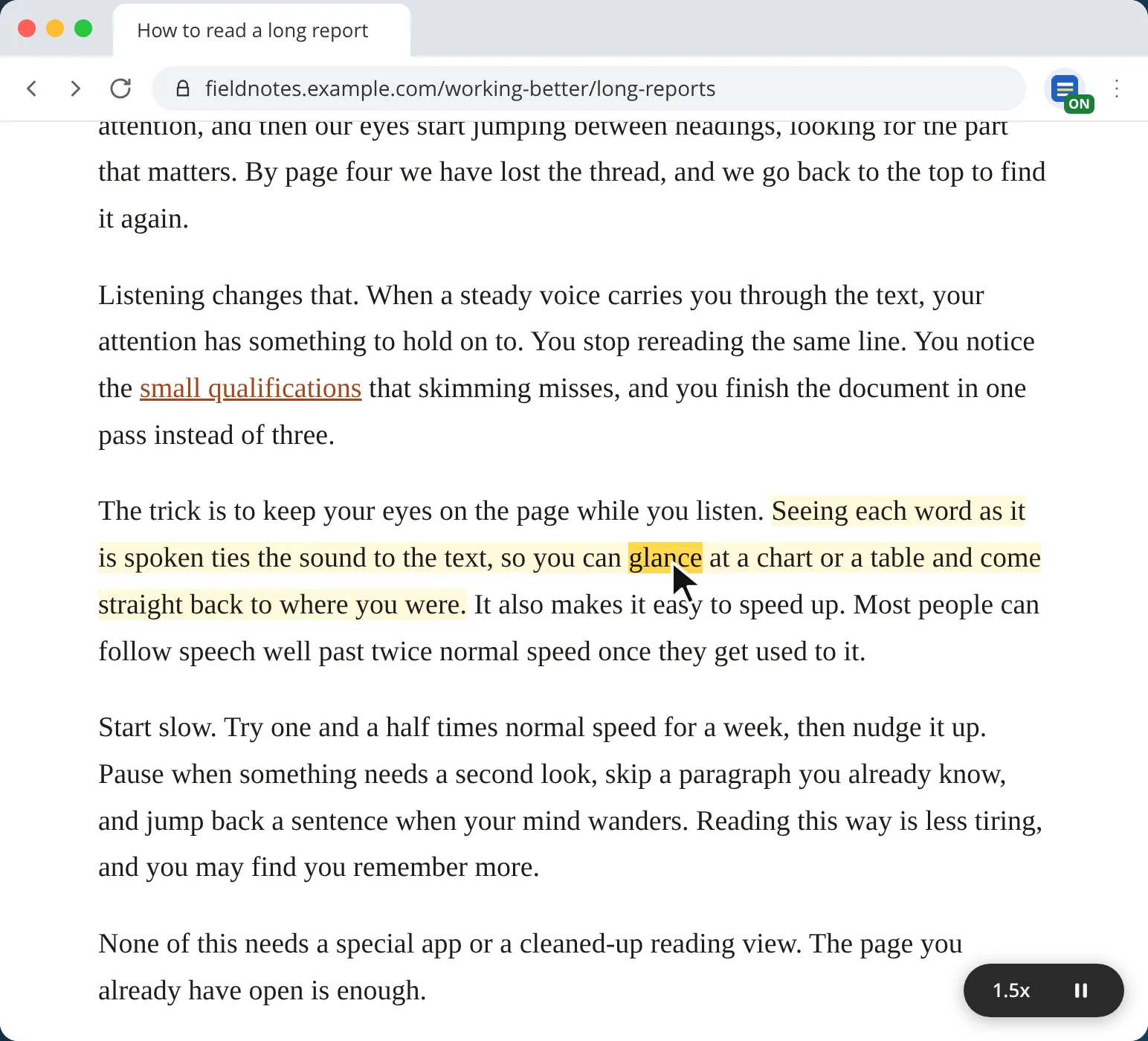
A pointer clicking the word glance in the middle of a paragraph, which is now highlighted as the current word, with a small 1.5x pill in the corner.

Go well past 2x when you're ready

Speed runs from half speed up to the fastest your voice can really go. On-device voices often reach 4x or more. Google's online voices top out near 3.75x, and their word highlighting is estimated.

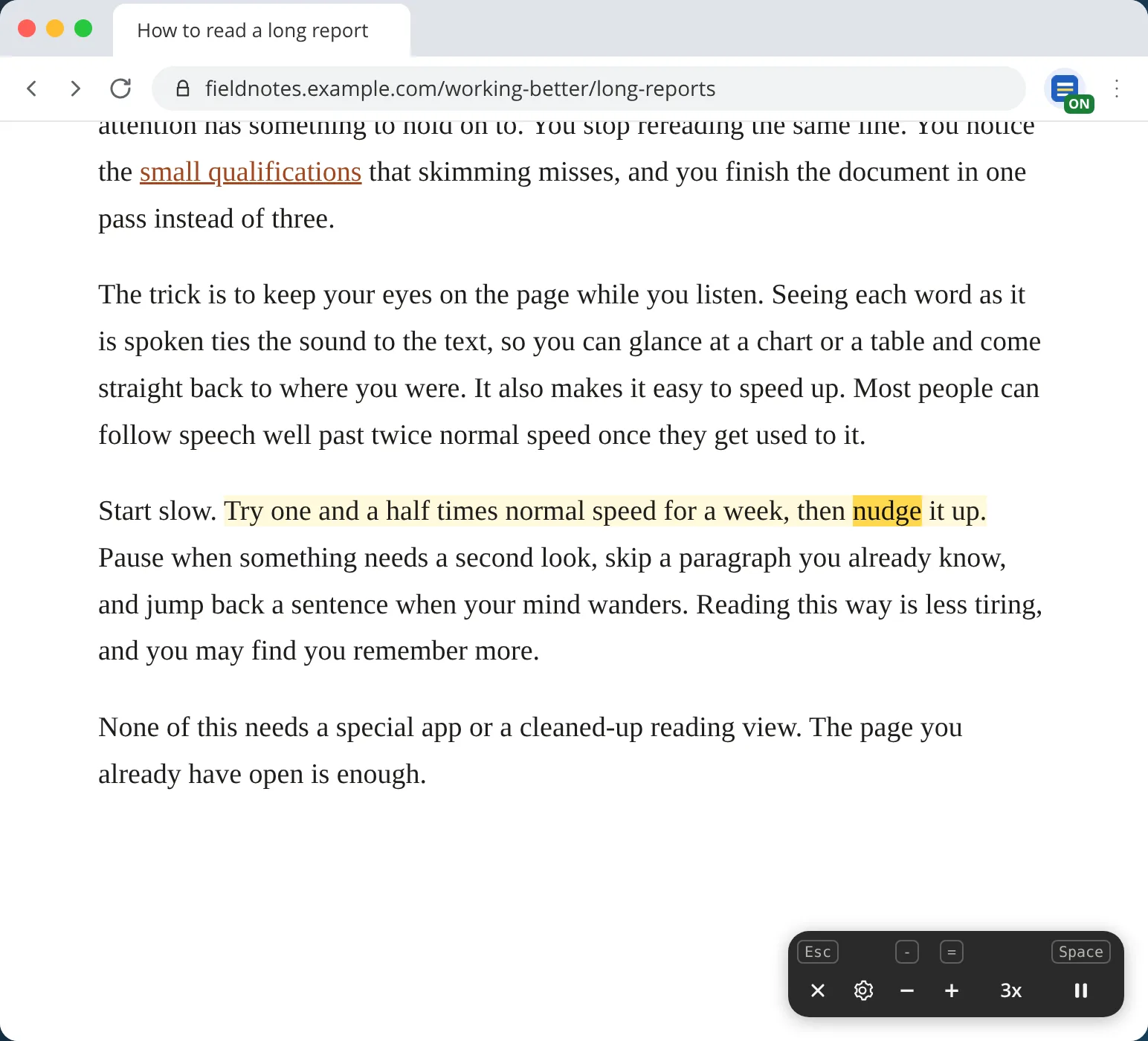
The pill in the corner shows your speed. Hover it to change speed, open settings, or stop, with each key shown above its button.

The corner controls opened on hover, showing stop, settings, slower, faster, 3x, and pause, with key hints above each.

Pick a voice and find its top speed

Glint Reader comes with four natural voices. They run entirely on your computer, with exact word highlighting, and they work even where Chrome has no voices of its own, such as the Flatpak build of Chrome on Linux.

You can also choose any voice in Chrome or on your computer. Voices that report each word give exact highlighting, and the settings page groups them for you.

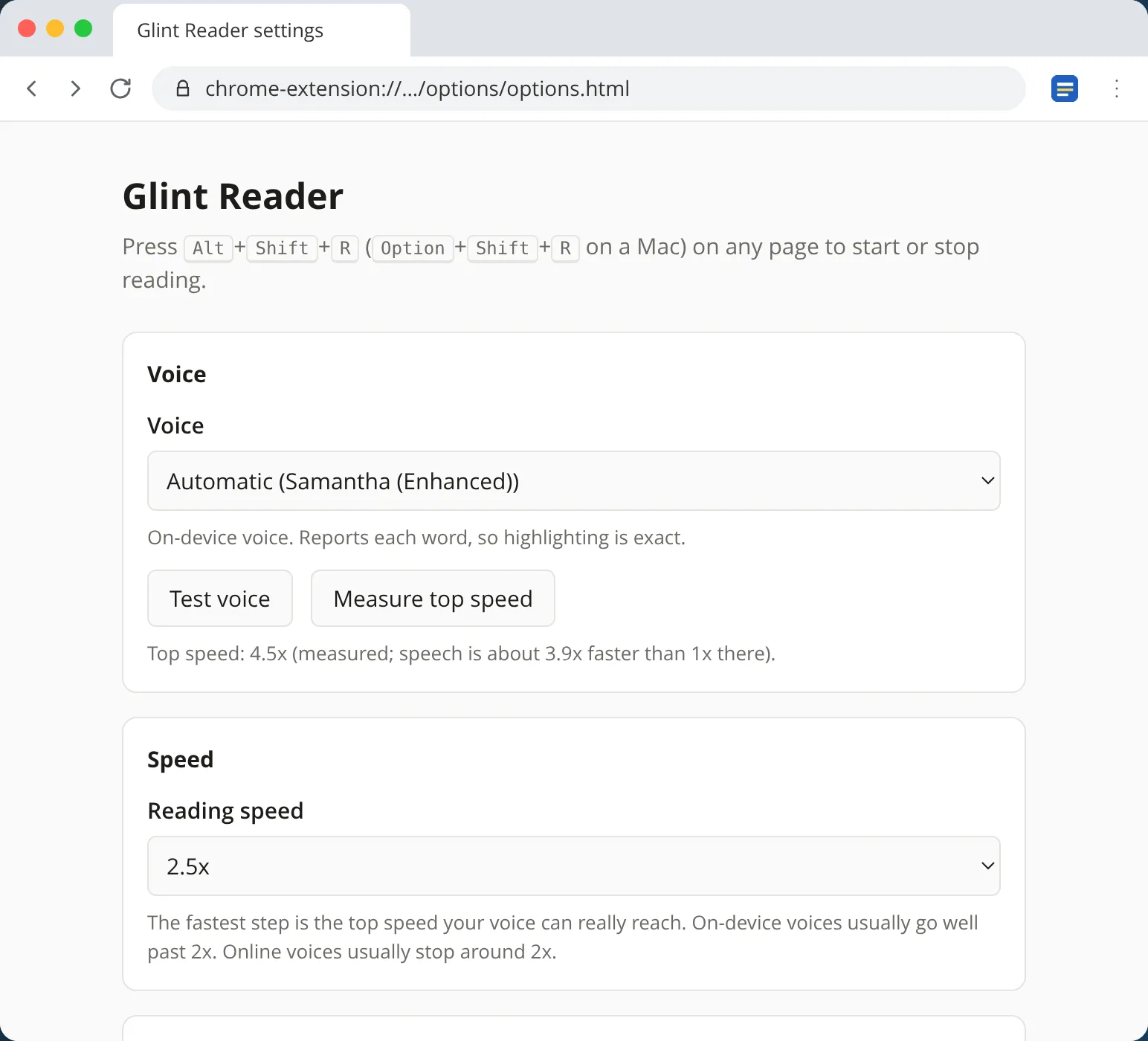
One click measures how fast your voice can really go, silently, so the speed steps never promise more than the voice can do. You can choose your own highlight colors too.

The Glint Reader settings page, with a voice menu set to Samantha (Enhanced), a measured top speed of 4.5x, and a reading speed of 2.5x.

Keyboard

Steer without the mouse

Keys work only while it's reading, and never while you're typing in a field.

Glint Reader keyboard shortcuts
KeysAction
Alt + Shift + RStart or stop on this tab
SpacePause or resume
→ ←Next or previous sentence
↓ ↑Next or previous paragraph
= -Faster or slower
0Back to 1x
EscStop

Questions

Good to know

Does it change the page?

No. Highlighting paints over the text with Chrome's highlight feature, so the page's layout and content stay exactly as they were. The only thing added is the small pill in the corner.

Which voice should I use?

Pick a voice listed under “On this device, with word highlighting” in the settings. These give exact word tracking and the highest speeds. The four built-in voices are always there, marked “Glint built-in”, and they speak English. On a Mac, the Enhanced and Premium voices you can download in System Settings sound best too.

Why does it stop at a certain speed?

Each voice has a real top speed, past which it doesn't get any faster. Glint Reader measures it and stops the speed steps there, so the number you see is the speed you hear.

What can't it read?

Chrome's built-in PDF viewer, pages drawn on a canvas such as Google Docs, Chrome's own pages, and the Chrome Web Store. Text inside embedded frames can be read only by selecting it and right-clicking. If it can't start, the toolbar icon shows a red !. It does read text inside web components and email bodies like Karbon's.

Can I change the shortcut?

Yes. Open the settings page and choose “Change the start shortcut”, or go to chrome://extensions/shortcuts.

Does it cost anything?

No. It's free, with no account and no upgrade.

Is it open source?

Yes. Glint Reader is free and open source under the GNU GPL, version 3. The source code is on GitHub.

Support

Something not working?

Email max@navica.llc with the page you were on and what happened. I read every message.

Want something like this for your firm?

I build small, focused tools around how accounting firms really work. Tell me where your team loses time, and we'll see what's worth building.

Pick a time on the calendar